Section outline
-
If the result files of your model are satisfactory, you can then test your model on other data, especially your “test” folder.
But how do you know if your model is good? Open your results folder and let’s go through the important points to check:
- the mAP50-95 score:
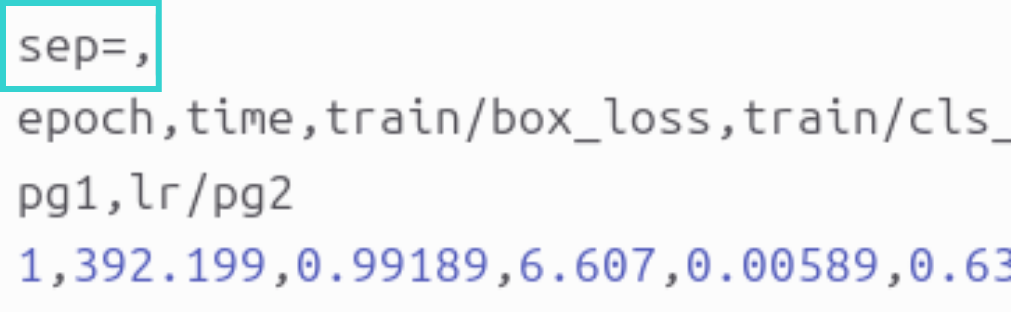
- where to find it: in the results.csv file. Important point: in this file, the separator is a comma “,” whereas Excel expects semicolons, so the file may appear unreadable. To fix this issue, first open the file in a text editor and add a first line that says “sep=,” as shown in the image below:
-
- save the modification, close the file, then open it in Excel.
- each row corresponds to an epoch and each column contains values for different losses, metrics, and learning rate for that epoch. The column we are interested in is called: metrics/mAP50-95(B).
- how to use it to evaluate your model: scroll all the way down to get the value of this metric at the last epoch of your model.
- what is a good value:
- below 0.3: bad
- above 0.5: good for complex objects
- above 0.7: excellent
- loss curves:
- where to find them: in the results.png file to directly visualize the curves and their trends.
- what to observe:
- if both curves decrease and stabilize, your model is good
- if the validation curves (val) increase while the training curves (train) decrease, your model is bad (sign of overfitting)
- F1 score curve:
- where to find it: the file BoxF1_curve.png
- what to check:
- the curve should be as high as possible, close to 1.0.
- what to extract:
- take the x-value of the maximum, as it is the optimal confidence threshold. It is written in the legend next to “all classes” as: “all classes max_value at optimal_threshold”. You take the second value to use as the “conf” parameter when deploying your model.
- valbatchXpred.jpg images:
- these images correspond to the model output, giving you a visual feedback of training. You can check whether detections are correct, bounding boxes are well placed, and no objects are missed.
VALIDATION ON THE TEST SET
If the model appears satisfactory, evaluate it on unseen data (the "test" folder) :
Loading : import the optimized model ('best.pt') located in 'runs/detect/trainX/weights' :
from ultralytics import YOLOmodel = YOLO("path/to/your/file/best.pt") # Do not hesitate to use the absolute path unless you are on the clusterConfiguration : ensure that the `data.yaml` file contains the path to the test set (or create a `data_test.yaml`).
Execution : launch the specific validation :
metrics = model.val(split="test")Analysis : Consult the results generated in `runs/detect/valX`. If performance is insufficient, retraining is necessary.
RETRAINING AND OPTIMIZATION
To improve an underperforming model, two strategies are possible:
- Extending the Training :
- You must imperatively load the weights from the last epoch ('last.pt'), not the best ones ('best.pt').
- Launch the training with the option 'resume=True'. The 'epochs' parameter then indicates the total number of epochs targeted (e.g., to go from 100 to 150 epochs, specify 'epochs=150').
from ultralytics import YOLOmodel = YOLO("path/to/your/file/last.pt")results = model.train(epochs=150, resume=True)- Adjusting Hyperparameters :
If extending the training proves insufficient, it may be necessary to modify the model's configuration (learning rate, batch size, architecture, etc.). These advanced settings, specific to each use case, are not detailed in this document; it is recommended to consult the official Ultralytics documentation or specialized online resources to explore these aspects further.
- the mAP50-95 score: