Section outline
-
The implementation of an object detection system requires the use of an artificial intelligence model, a complex neural architecture whose design *ex nihilo* is reserved for experts. The standard approach therefore consists of leveraging pre-existing models developed by professionals, focusing exclusively on the training phase of the neural parameters.
In this context, we will utilize the YOLO (You Only Look Once) architecture, developed by the company Ultralytics. Although several iterations have been published over time, this tutorial is based on the most recent available version, termed YOLOv8.
The implementation of this project first requires the configuration of a Python virtual environment. Conceptually, this isolated space functions as an autonomous unit within a host system: it guarantees the independence of software dependencies and configurations, thereby avoiding potential conflicts with other applications or with the operating system itself.
This isolation allows code to be executed in a controlled and reproducible context, akin to a virtual "mini-computer," thus ensuring the stability and portability of the project without altering the global environment of the physical machine.
INSTALLATION OF UV
The creation of this virtual environment relies on the "uv" tool, which acts as the architect and builder responsible for designing and deploying these isolated spaces.
The installation procedure for "uv" varies depending on the operating system. Please refer to the video guides below.
For Windows :
For Linux/macOS :
SETTING UP THE VIRTUAL ENVIRONMENT
Now the tool for creating a virtual environment is installed (the architect and construction team have arrived). We now need to design the “floor plan” of our environment by specifying everything we need. This is exactly what we will do in a .toml file, which we will create together.
In this file, we will specify that we need Python and the Ultralytics package.
Start by opening a text editor (for example Notepad on Windows).
Then, in a blank file, copy and paste the following lines:
[project]name = "your_project_name"version = "0.1.0"description = "Add your description here"readme = "README.md"requires-python = ">=3.12"dependencies = [ "ultralytics>=8.4.18", ]Then click “Save As”:
-
Go to your working directory (the folder where you extracted your Roboflow .zip archive)
-
In “Save as type”, select “All files (.)”
-
In “File name”, enter pyproject.toml (this name must be exact and cannot be changed)
-
Finally, save the file.
Important point: make sure that “.toml” is indeed the file extension. To do this, you first need to display file extensions:
Go to View → Show (at the bottom) → File name extensions, then check that the file name ends with “.toml”.
PYTHON CODE
Now, create a Python file in the same folder, using the same method as before:
-
Open a text editor
-
Write the three lines below (you can copy-paste them)
-
Click “Save As”
-
Set the extension to .py (same process as before, but instead of .toml, use .py)
The lines in question:
from ultralytics import YOLOmodel = YOLO(“yolo26n.pt”)results = model.train(data=”data.yaml”, epochs=100, imgsz=640)EXPLANATIONS
-
-
model = YOLO(“yolo26n.pt”)
-
This line is used to specify which model you want to train. In this case, we can see that a “nano” model is being used because there is an “n” after “yolov26”. YOLO provides five model sizes: nano (“n”), small (“s”), medium (“m”), large (“l”), and extra-large (“x”). Intuitively, smaller models are faster but less accurate, while larger models require more computation time but are more robust and powerful.
These models are pre-trained to save both training time and to improve performance.
(For advanced AI users, YOLO also allows you to build your own neural network by manually defining each layer in a .yaml file — see the official documentation)
-
-
results = model.train(data=”data.yaml”, epochs=100, imgsz=640)
-
- data: set this to the name of your
.yamlfile provided in the Roboflow.zipexport. - epochs: epochs correspond to the number of training cycles. To put it simply, the model goes through all images in the training set and updates its parameters. The number of epochs defines how many times it will iterate over the entire dataset.
- imgsz: this refers to the size of your images, so you should use the same value you selected in Roboflow. The default value is 640, so if you want larger or smaller images, you must explicitly specify it; otherwise, images will be resized (downscaled or upscaled) automatically.
To give you some typical parameter benchmarks:
- model:
yolo26n.pt(Nano version for speed) oryolo26s.pt(Small version for accuracy). - epochs: 100 is the default value. For small datasets, you can increase it to 300.
- imgsz: 640 is the default value. Use 320 for faster processing or 1280 to detect very small objects.
- batch: -1 for automatic adjustment based on your VRAM, or 16 by default.
- device: 0 to use your first GPU, or
cpuif you don’t have one.
Regarding model size, it is recommended to switch to a larger model than
yolo26s(such as the m, l, or x versions) in the following situations:- Need for maximum accuracy: If your current model suffers from underfitting and fails to capture complex details, a larger model offers greater learning capacity.
- Dataset complexity: For large datasets (> 50,000 images) with many classes or dense scenes, Medium or Large models perform better.
- Difficult objects: If you are working with high-resolution images containing very small objects (such as aerial or medical imaging), the increased capacity helps reduce detection errors.
- Sufficient hardware resources: Use a larger model if deployment is on a server (such as the ISDM MESO cluster) or a powerful GPU rather than on mobile or CPU.
AUGMENTATION
We have now reached the point where you may need to disable YOLO augmentation, if necessary.
If you have already performed augmentation with Roboflow and do not want YOLO’s augmentation to interfere, add the blue-highlighted lines below.
Make sure to keep your initial parameters such as data, epochs, imgsz, etc :
model.train(
data="data.yaml",
epochs=100,
imgsz=640,
hsv_h=0.0, # Disable color (Hue)
hsv_s=0.0, # Disable color (Saturation)
hsv_v=0.0, # Disable color (Value)
degrees=0.0, # Disable rotation
translate=0.0, # Disable translation
scale=0.0, # Disable scaling
shear=0.0, # Disable shear
perspective=0.0, # Disable perspective
flipud=0.0, # Disable vertical flip
fliplr=0.0, # Disable horizontal flip
mosaic=0.0, # Disable mosaic
mixup=0.0, # Disable mixup
copy_paste=0.0, # Disable copy-paste
auto_augment=None, # Disable auto-augment policies
erasing=0.0 # Disable random erasing
)
Otherwise, if you have not performed any augmentation with Roboflow, the simplest approach is to let YOLO handle augmentation by default. In that case, do not include any of the blue lines above, as we want these parameters to keep their default values.
FINAL STEP CHECK
Your working folder should look like this by the time you've arrived here :
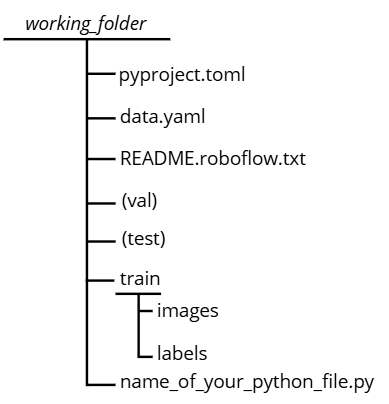
Note: there may be variations in the train, val, and test files depending on how you organized your dataset. The most important point is that the
data.yamlfile remains consistent with the corresponding paths.RUN THE CODE
Everything should now be ready, so you can run the code. To do this:
-
Go to your working directory
-
Right-click and open a terminal in that folder
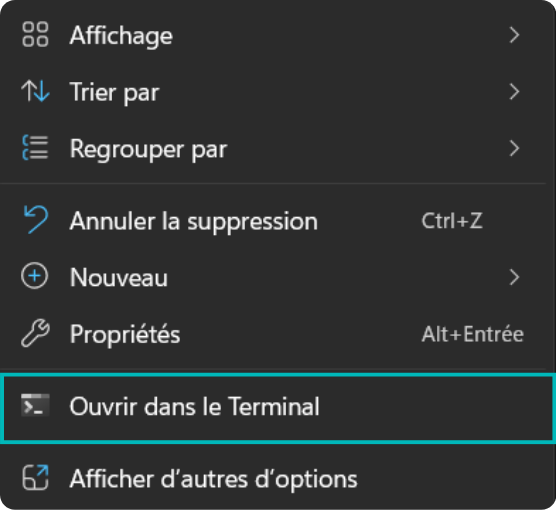
On macOS, access the working directory via the `cd` command followed by the absolute path in the terminal. Then, launch the script execution with the command `uv run name_of_your_python_file.py`.
The initial execution of this command requires significant processing time, as the `uv` tool must interpret the `pyproject.toml` configuration file and provision the virtual environment with all required dependencies (Python, Ultralytics, etc.). Once this environment is built, subsequent executions will launch considerably faster.
Upon completion of the training, a model performance evaluation phase is essential. The following section, "Results," details the interpretation of the metrics calculated by YOLO. For a summary analysis of the model's quality without entering into technical details, you may refer directly to the "Conclusion" subsection of this same chapter.
-